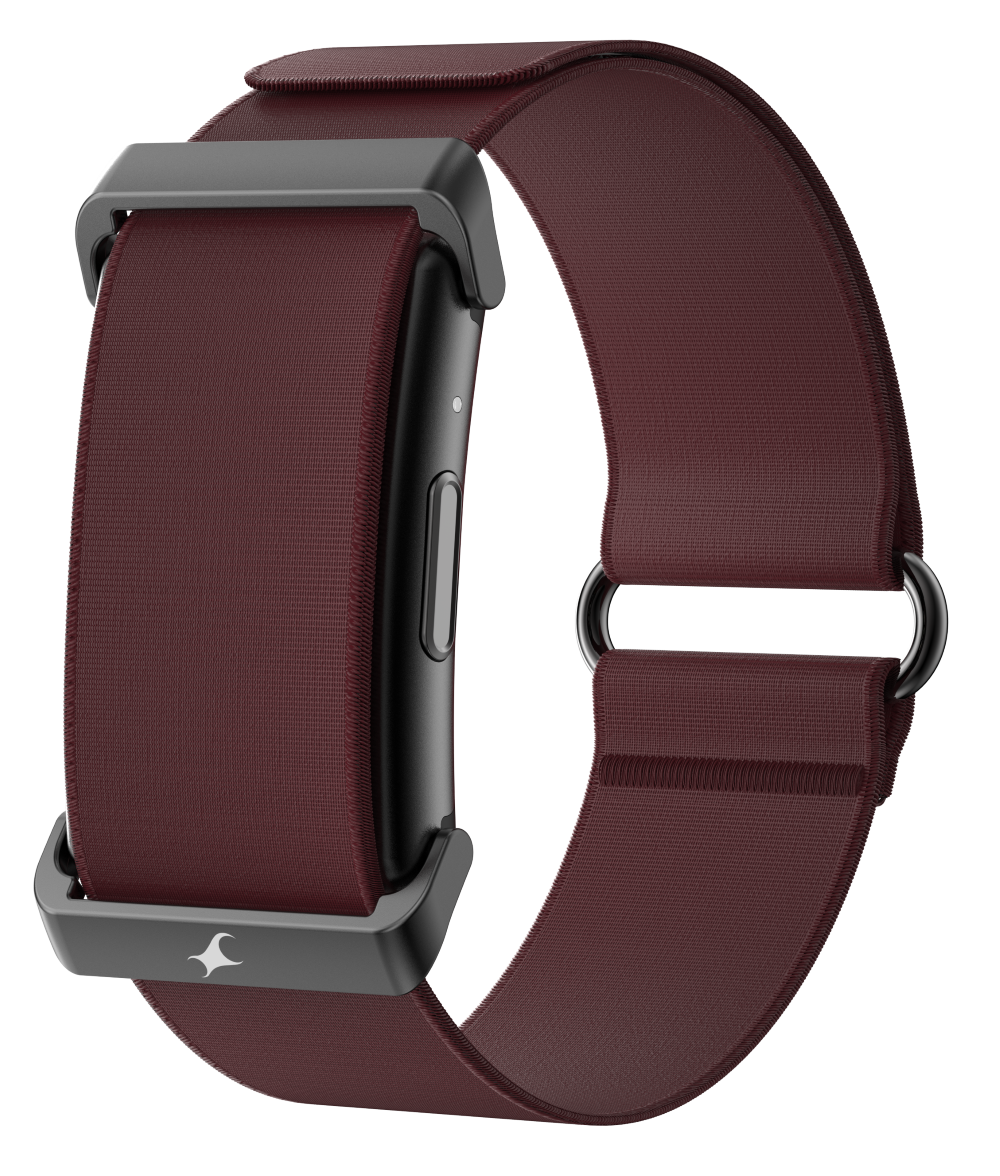
Device Specifications
| Specification | Details |
|---|---|
| Model No. | SWD90070 |
| Weight of the Smart Device |
20.6 g |
| Dimensions for the Case |
39.9 mm (6H - 12H) 26.24 mm (3H - 9H) |
| Case Material | Plastic |
| Band/Strap Material | Nylon |
| Mode of Operation | Push Button |
| Accelerometer | 3 axis |
| Battery Capacity | 200 mAh |
| Battery Life | Up to 10 days |
| Compatibility (Android / iOS) | Android 10.0 + & iOS 16.0 + |
| Bluetooth Version | Version 6.0 |
| Water Resistance | IP68 |
What's in the Box
- Fastrack Smart Device
- Magnetic Charging Cable
- Product Manuals
- Quick Start Guide
App Installation & Process
- Go to Play Store or App Store
- Use the Search tab to look for 'Fastrack Smart World' app.
- Download the App and let it install.
- The 'Fastrack Smart World' app is compatible with Android 10.0 & above and iOS 16.0 & above

Getting Started
Option 1: Use Smart Device First
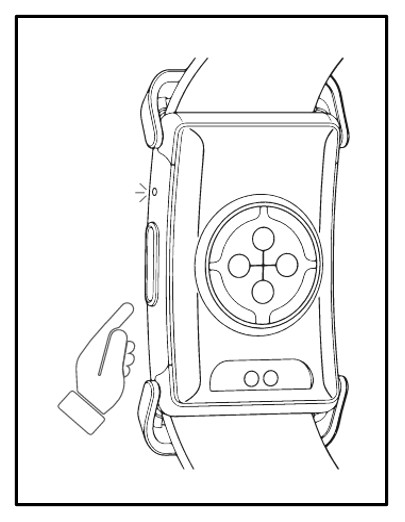
Step 1: Power On/Off Band:
Power On: Press and hold the side button while the band is turned off. The band vibrates once, and the blue LED flashes once.
Power Off: Press and hold the side button while the band is turned on. The band vibrates once, and the red LED flashes once.
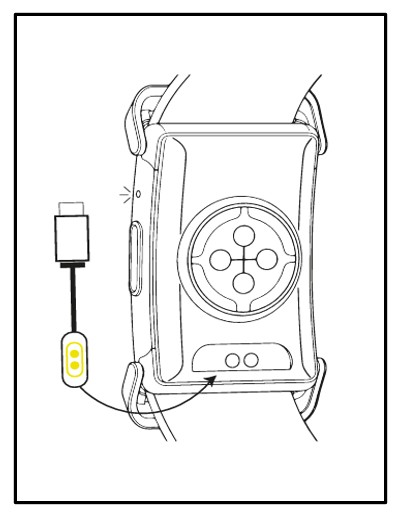
Step 2: Charge your Band. Connect the charging cable securely to the band.
Charging: The band vibrates once, and the red LED remains On during the charging process.
Fully charged: The green LED remains On.
Step 3: Install the Fastrack Smart World App from the App Store or Google Play Store.
The Fastrack Smart World app is compatible with iOS 16.0 & above and Android 10.0 & above.
Option 2: Pair Your Device with App
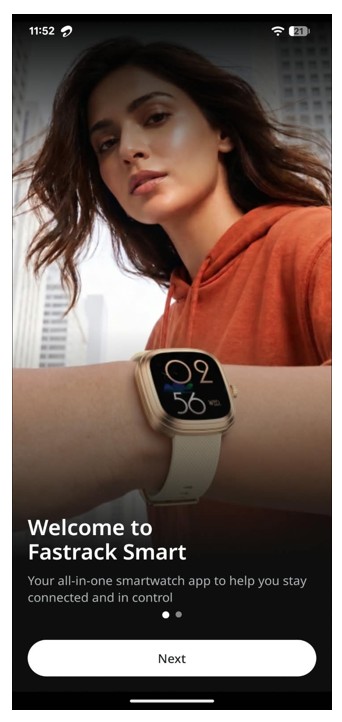
Step 1: Welcome screen.
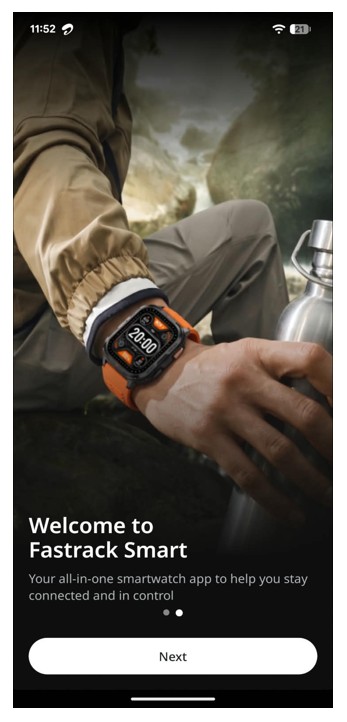
Step 2: Click on Let's Go
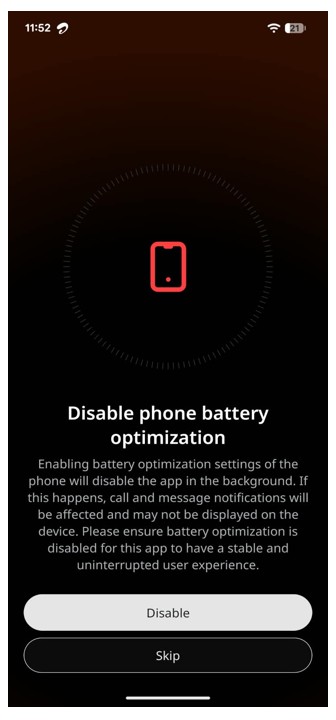
Step 3: On Android devices, Battery Optimization is enabled for apps by default. This may restrict the app from running in the background, which can affect call and message notifications. For the best experience, disable Battery Optimization for the app.
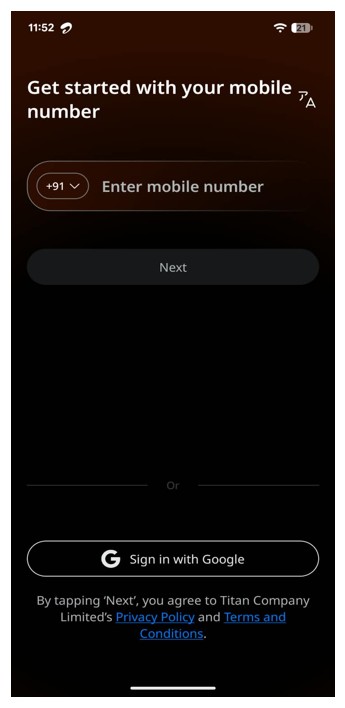
Step 4: Enter mobile number or sign in with your email id/ Apple id
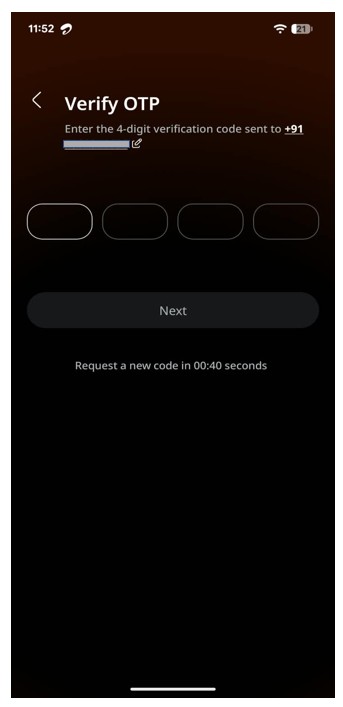
Step 5: Enter OTP and verify.
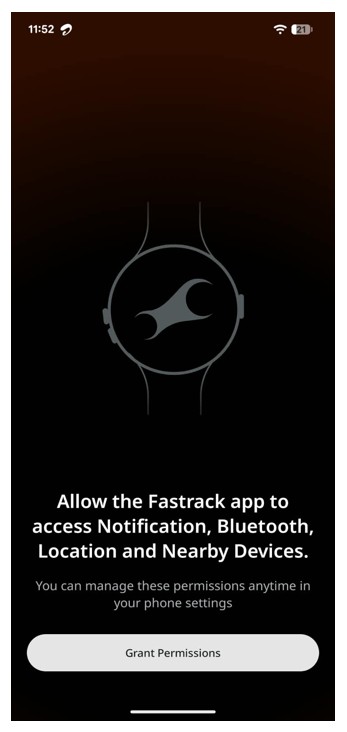
Step 6: Grant permission to Bluetooth and location services to pair your device.
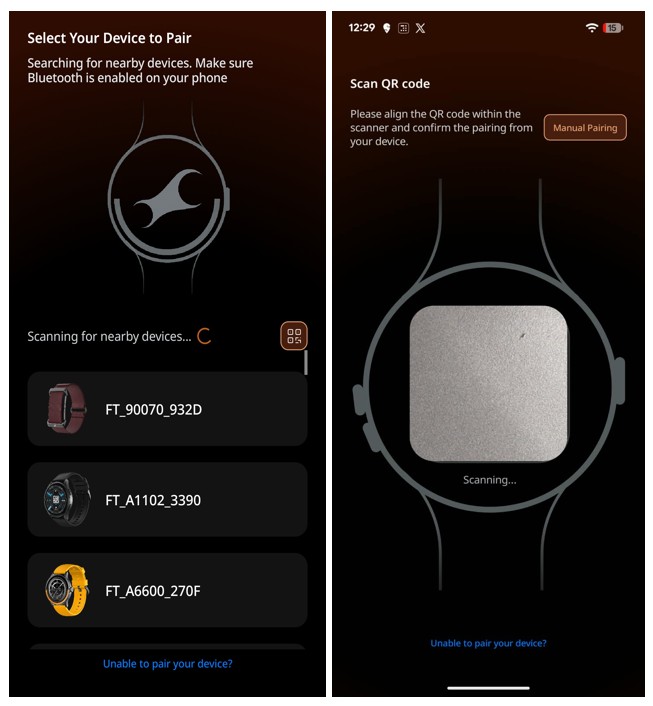
Step 7: Scan the QR code displayed on your device or select Search Manually and choose your device from the list in the app. Approve the pairing request on your device to complete the pairing process. Your device is now successfully paired with the app.
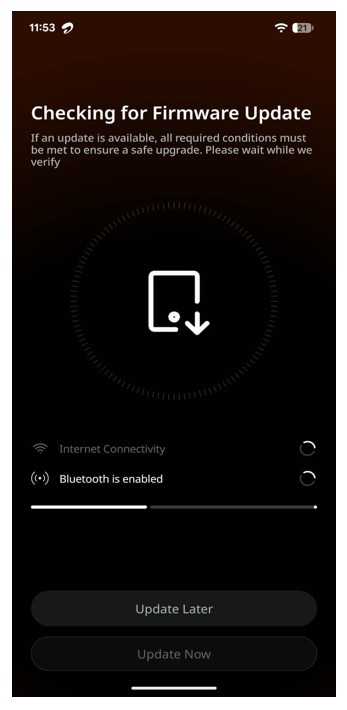
Step 8: The app checks whether a firmware update is available for your device. If an update is available, you will be prompted to update the device. If no firmware update is available, you can continue to the next step.
Multisport
The Smart device supports 100+ multisport activities and provides activity details such as workout duration, calories burned, and other
sport-specific metrics.
Since the device does not have a display, multisport activities cannot be started directly from the band. To start
a workout, open the connected mobile app, select the required sport, and begin the activity from the app.
For outdoor activities that require route tracking, keep the band connected to the smartphone and start the workout from the mobile app.
The app uses the phone’s location/GPS services to record the activity route.
All supported multisport activities are listed in alphabetical order in the mobile app for easy selection.
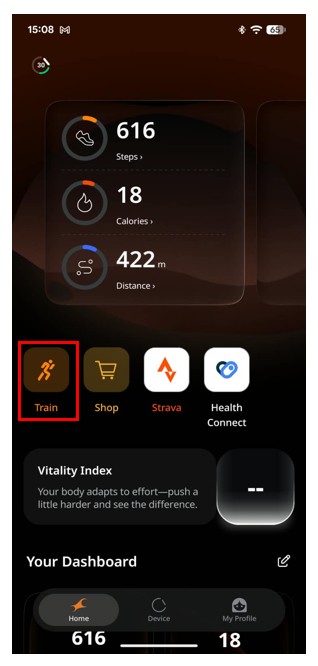
Step 1:Go to Train in the app, choose a sport, and set your goal for the activity or start without goal.
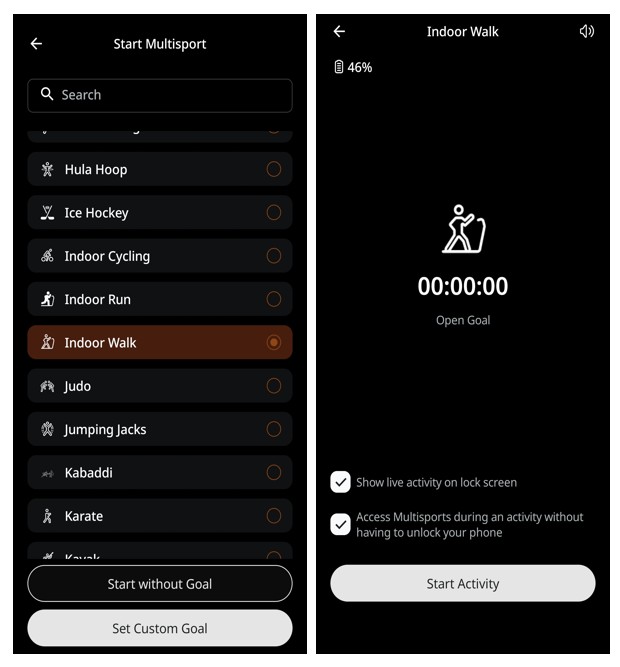
Step 2: Tap Start Activity to begin your workout.
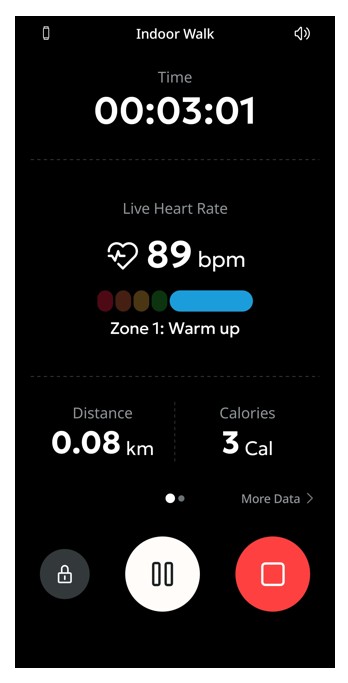
Step 3: Use the Pause/Continue option to pause and resume your workout.
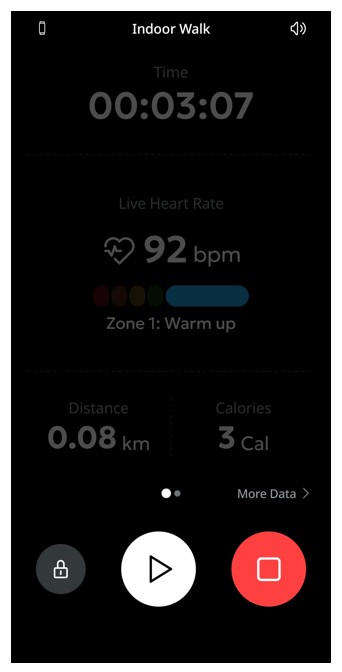
Step 4: Tap the Stop button to end the workout, then tap End to save the activity.
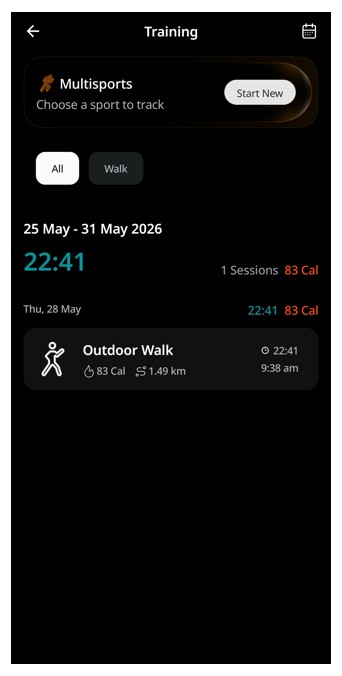
Step 5: To view detailed statistics of your completed activity, go to the Train card on the app’s Home screen.
One-Click Measurement
One-Click Measurement in the app lets you measure your heart rate, SpO₂, and stress levels simultaneously with a single tap, giving you a quick overview of your key health metrics.
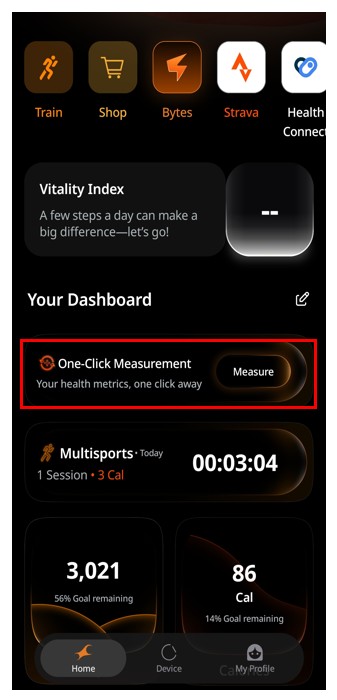
Step 1: Before starting the measurement, make sure you are wearing the band properly and that it is connected to the app. On the App’s Home screen, go to One-Click Measurement and tap MEASURE.
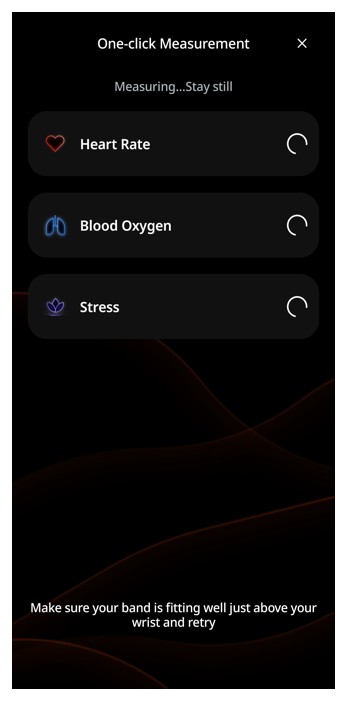
Step 2: The band will start measuring your heart rate, SpO₂, and stress levels simultaneously.
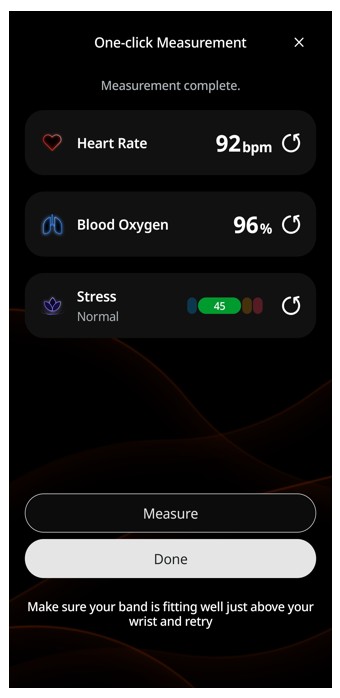
Step 3: Keep your hand still during the measurement and ensure that the band remains connected to the app. Once the measurement is complete, the heart rate, SpO₂, and stress values will be displayed on their respective screens in the app.
Notification Alerts
Stay updated with important notifications without checking your phone. Once Notification Alerts are enabled in the app, the band notifies you of selected app notifications and incoming calls using LED indications and vibration alerts.
Enable Notification Alerts
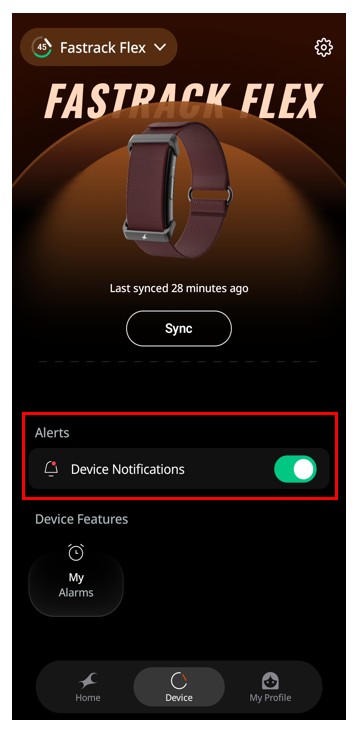
Step 1: Turn On or Off the notifications from Device > Device Notifications.
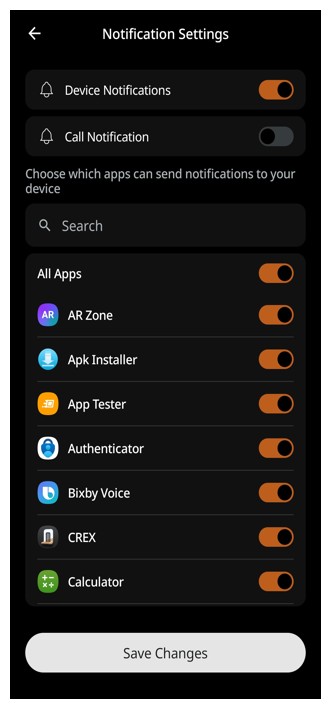
Step 2: Enable notifications and select the apps from which you want to receive alerts. Enable Call Alerts from the same section. When a notification is received, the band flashes the green LED once and vibrates once.
Incoming Call Alerts
When Incoming Call Alerts are enabled, the band flashes the blue LED and vibrates continuously while there is an incoming call on your phone.
Alarms
Set alarms directly from the app to receive alerts on your band. You can set and manage up to 5 alarms from the app.
Set an Alarm
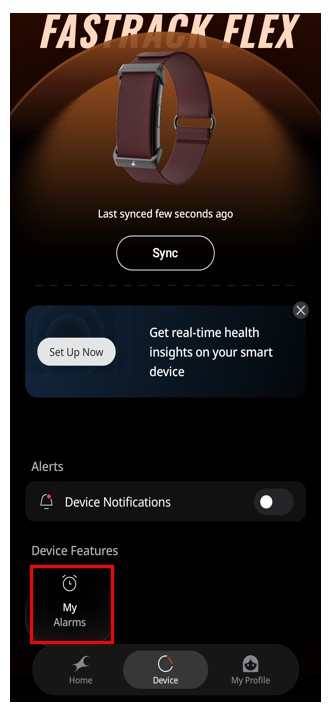
Step 1: You can access My Alarms in the app like Go to My Device > Alarms.
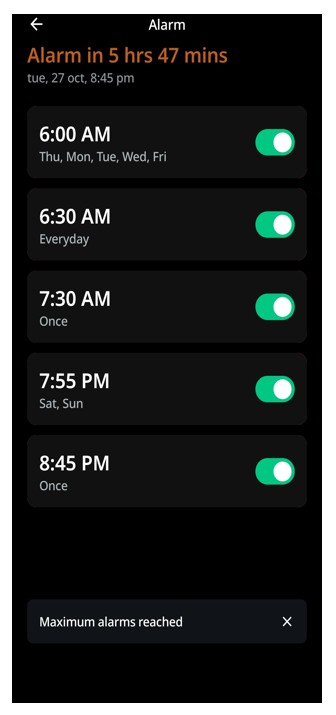
Step 2: Set the desired time and configure the alarm as needed. You can set a maximum of 5 alarms.
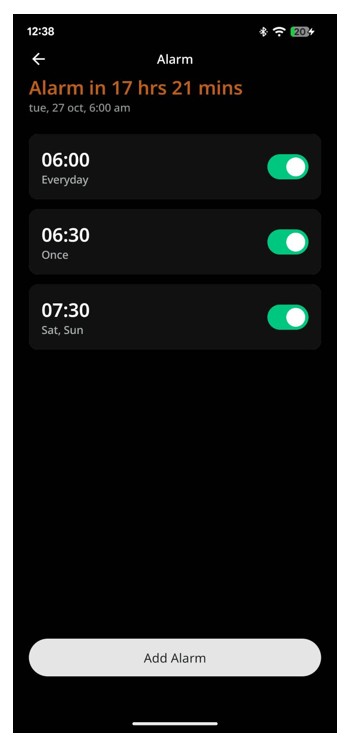
Step 3: When an alarm is triggered, the band vibrates for 30 seconds, while the green LED flashes to indicate the alarm notification.
Find your smart device
Use the Find Your Smart Device feature in the app to quickly locate your band when it is nearby and connected to the App. Once activated, the band provides LED and vibration alerts to help you find it.
Alert
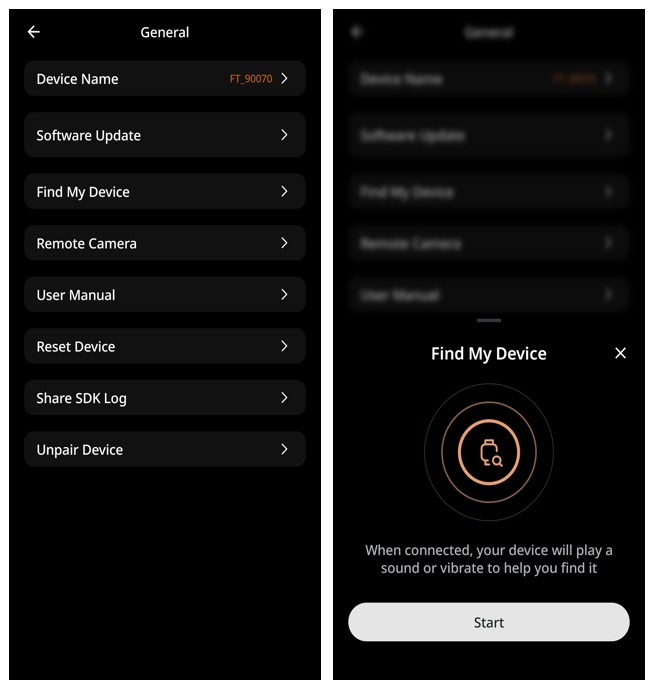
- When the feature is activated, the green, red, and blue LEDs flash, along with continuous vibration for up to 1 minute.
- Once you find the band, press the side button once to stop the alert.
Camera Control
Use the Camera Control feature to capture photos on your phone remotely using a simple wrist gesture, without having to tap the shutter button on your phone.
Capture a Photo
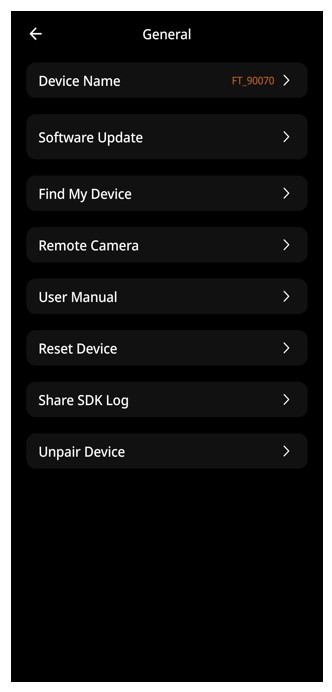
Step 1: Go to Settings > Camera in the app.
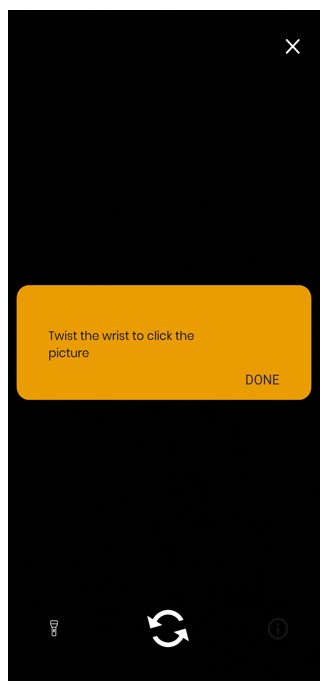
Step 2: The in-app camera will open on your phone.
Step 3: Position your phone as required, then twist your wrist while wearing the band to capture a photo remotely.
App Functions
Dashboard
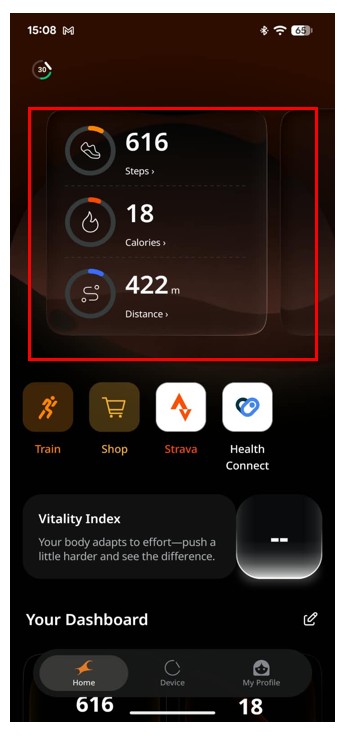
The Dashboard provides a quick overview of your daily activity and progress, including sleep, steps, active hours, stand time, and multisport activity. It features customizable cards that let you focus on the information that matters most to you. Use the Edit option to personalize the cards and choose the information you want to view on your Dashboard.
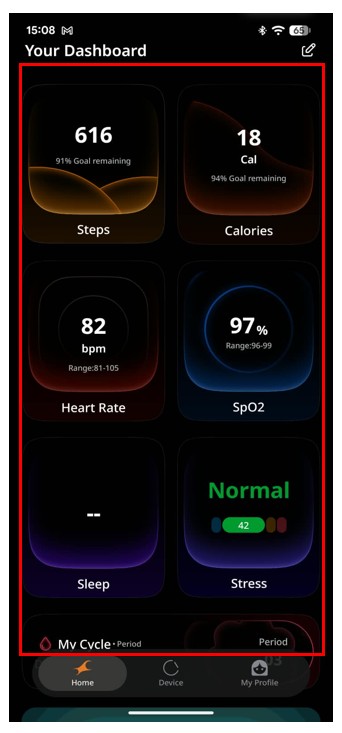
The Fitness Dashboard provides an overview of your latest health and wellness records, including information such as Steps, Calories, Heart Rate, SpO2, Sleep, Stress and other available health metrics. The dashboard displays the most recent recorded data for each available health feature, allowing you to quickly review your current status in one place. You can customize the dashboard health cards data by using the edit option to rearrange the health cards and place them in your preferred order. Tap a health card to open the corresponding feature and view more detailed information and records.
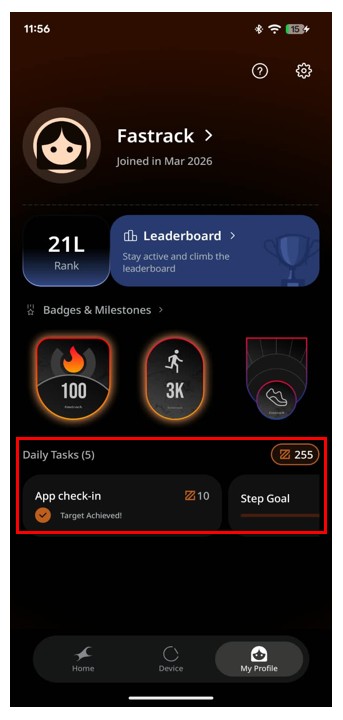
Daily tasks displays the challenges available for the current day. Open a challenge to view its objective, requirements, and progress. Track your activity as you work towards completing the challenge and check the updated progress to see how close you are to achieving the daily goal.
Community
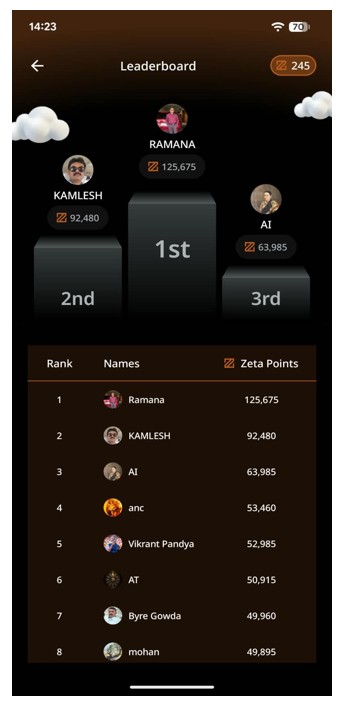
The Community section lets you connect with friends and view their points, activity, and ranking. You can compare your recorded activity with your connected friends, track your position on the leaderboard, and follow your progress over time. It provides a simple way to stay engaged with your fitness activities and see how you are progressing within your connected community.
Settings
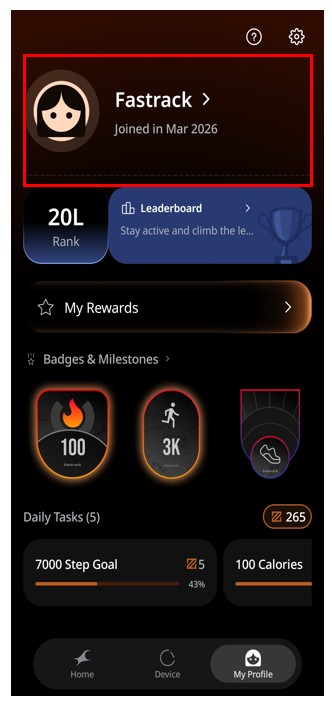
Your name is displayed at the top of the Settings screen. Tap your name to view and edit your profile details.
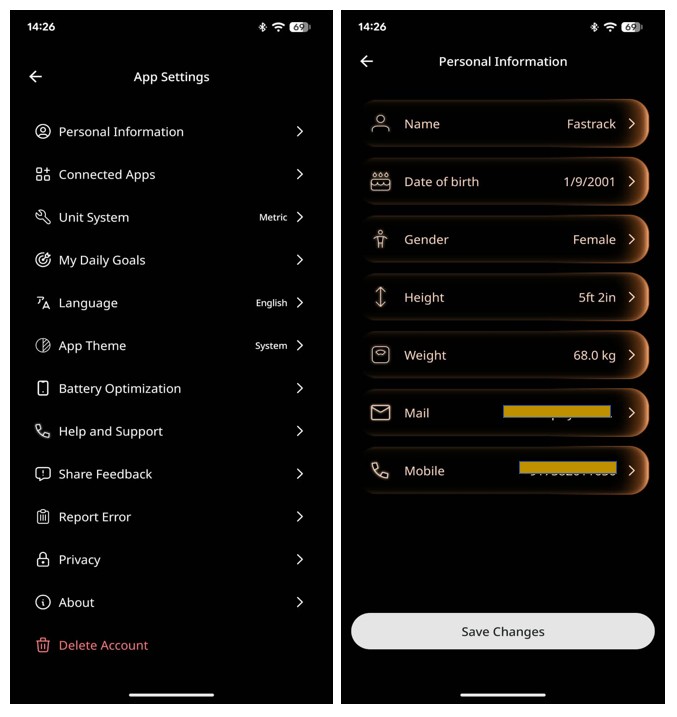
Personal Information lets you view and update the profile details used by the app, including your name, mobile number, email address, date of birth, gender, height, and weight. Keeping these details current helps the app use the correct profile information for supported tracking features.
"Turn on notification" to access notifications in the phone settings when prompted, then select or deselect individual apps whose notifications you want to receive on the App. Stay updated with important notifications without checking your phone. Once Notification Alerts are enabled in the app, the band notifies you of selected app notifications and incoming calls using LED indications and vibration alerts.
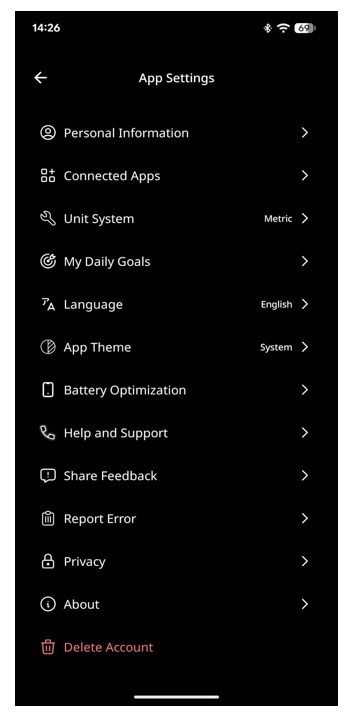
App Settings provides access to the main app preferences, including Personal Information, Connected Apps, Unit System, Goals, Language, App Theme, Help & Support, Feedback, About, and Delete Account.
Settings - Goals
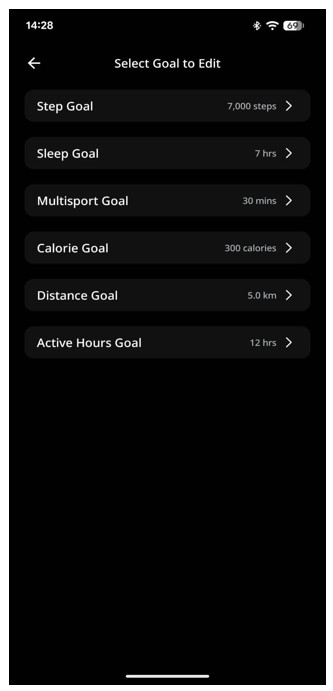
My Daily Goals lets you set or change the targets used by the app for steps, sleep, calories, distance, intensity, stand time, and multisport activities. Update a goal when you want the dashboard and progress views to use a different target.
Settings - My Smart Device
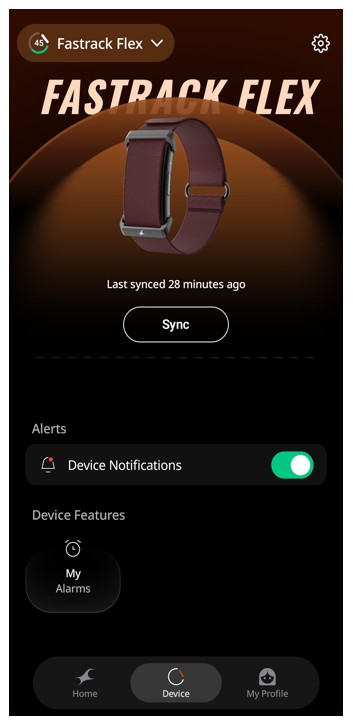
My Device provides an overview of your connected smartdevice and its current status. Use edit option to update the device name. Tap Settings to access the available device controls and manage the connected device settings.
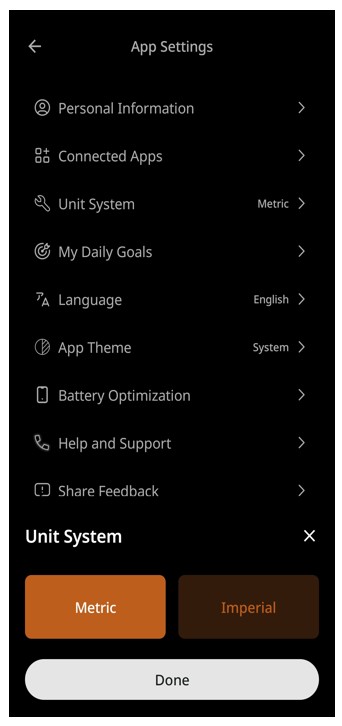
The Set Unit System option allows you to choose your preferred measurement units, such as metric or imperial, for displaying activity and health data. Select your preferred system to view measurements in the units that are most convenient for you.
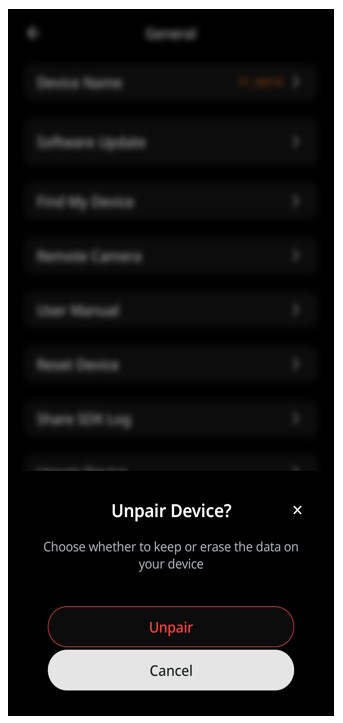
The Unpair option allows you to connect your smartdevice to the Fastrack Smart World app or disconnect it when needed. Use this option to manage the connection between your smartdevice and smartphone.
Update device lets you check whether new device software is available and install it through the app. Keep the device connected to the phone and follow the on-screen instructions when an update is available.
The Find Your Smart Device option helps you locate your paired smartdevice by triggering an alert, making it easier to find when misplaced. Ensure your smartdevice is connected to your smartphone and within the supported connection range.
Settings - General
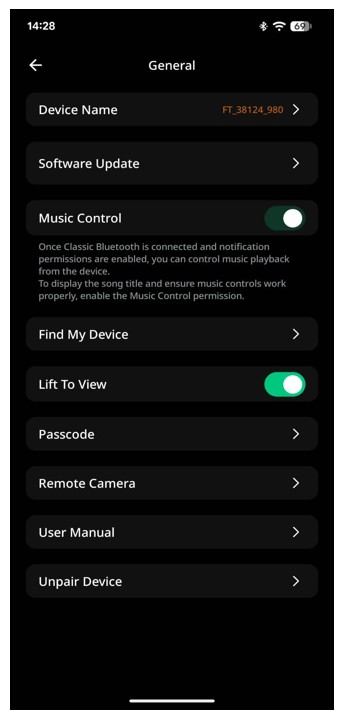
You can disable the Battery Optimization for Fastrack Smart World app & help run the app in the background. Some features might not work properly if enabled. Use the "Report Error" session to report any issues or errors faced.
Settings - About
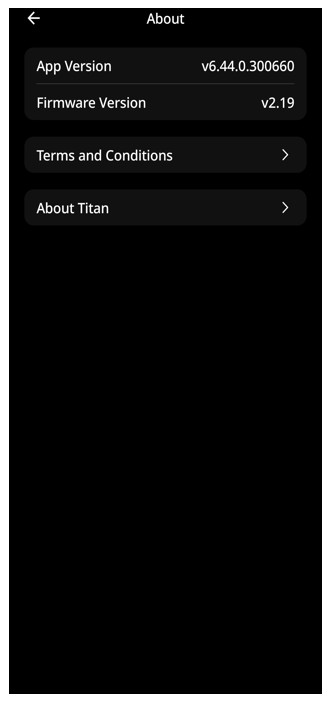
About shows the app version and connected device firmware version and provides access to the Terms and Conditions, Privacy Policy, and available information about Titan and its products.
Settings - Social Connections
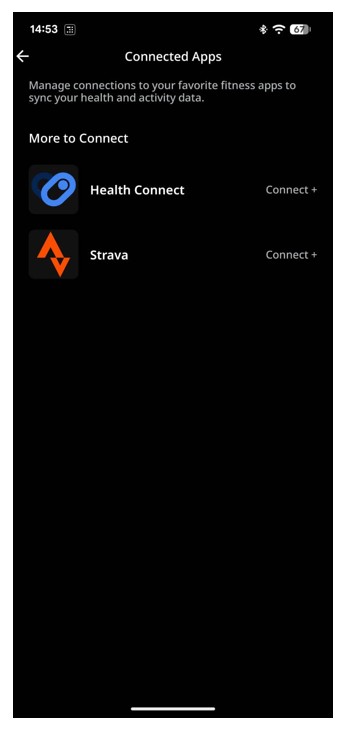
Connected Apps lets you manage supported connections with other health and fitness services, including Apple Health, Health Connect, and Strava. Use this section to connect or manage the services supported by your phone and app version.
Settings - Contact Us
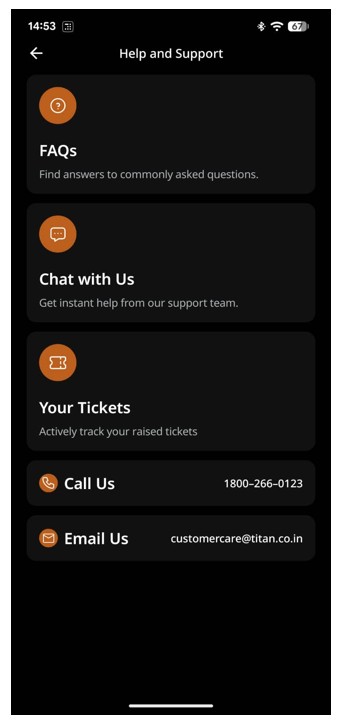
You can access Titan Smart World support by navigating to My Profile → Settings → Help and Support → Contact Us. Use the available contact options to get assistance, including 1800-266-0123 or email at smartdesk@titan.co.in
Note on the accuracy of Activity tracker
The Fastrack Flex (SWD90070) Smart Device is a tool that provides information on your training and activity performance and one that encourages an active and healthy lifestyle. The Smart Device relies on sensors that track your movement and other metrics. The data and information provided by it is a close estimation of your activity and metrics tracked but may not be completely accurate, including the steps, distance, Heartrate, Blood saturation and calorie data.
- Driving a vehicle (usually due to rough terrain)
- A restless night of sleep There are also instances where a lack of arm movement may result in a loss of steps while you are walking, like
- Pushing a stroller or shopping cart
- Carrying a bag of groceries or child
- Talking on phone and walking
FAQs
Smart Device FAQs
Scenario 2: If you have switched off the Smart Device then You can long press the functional button or connect it to the charger to switch on the Smart Device.
Scenario 3: The device charging cable might have an issue because of which it's not charging the Smart Device. Hence, you may need to change your charger. After trying the above scenarios, if the issue still persists, please reach out to 18002660123 or send a mail to smartdesk@titan.co.in
Mobile App FAQs
Download the Fastrack Smart World app from Google Playstore/ Apple Appstore.
Mobile Registration: Enter your mobile number. On the next screen, enter the OTP received to complete the registration.You can also sign in through Social Login by logging from your email id.
Permissions & Access:Provide necessary permissions to enable various features available on your Smartdevice..
Pairing: The next step is to pair the smart device with the phone through the Fastrack Smart World app. To do this, Allow the app to access necessary permissions like Bluetooth, Nearby, Location. You can now pair your Smartdevice. All Smart Devices available for pairing within the Bluetooth range will be displayed. Tap your Smart Device’s Bluetooth name to pair with it. The next step is to create a user profile in the application. User Profile: Enter Name, Gender, Birthday, Height, Weight. The application will be ready to use and you will be able to experience the new journey in the Fastrack Smart World.
On the App, click on Settings > Turn On Notifications. This will redirect you to the Notification Access settings on your phone. Please provide access to the Fastrack Smart World app.
When a notification is received, the band flashes the green LED once and vibrates once.
Warranty Guidelines

LIMITED WARRANTY FOR FASTRACK SMART WEARABLES AND ACCESSORIES
Thank you for choosing Titan Company Limited (“Titan/we/our”) for your smart wearables and accessories (charging cables and straps) purchase. We retail the smart wearables and accessories under the brand name ‘Fastrack Smart’(“Products”). This document outlines the terms and conditions of limited warranty provided by Titan for new Products (“Limited Warranty”).
- Limited Warranty:
- Smartdevices: The smartdevices retailed under the brands ‘Fastrack Smart’ are warranted to be free from manufacturing defects for one (1) year from the date of invoice. Titan will, at its sole option, repair or replace any smartdevice found to have manufacturing defects during the Limited Warranty period. Cases and straps will be covered under Limited Warranty for color peel off and discoloration issues for a period of six (6) months from the date of invoice.
- Charging cables: The charging cables provided with our smart Devices or retailed independently under the brands ‘Fastrack Smart’ are warranted to be free from manufacturing defects for three (3) months from the date of invoice.
- Straps: The straps provided with our smart devices or retailed independently under the brands ‘Fastrack Smart’ are warranted to be free from manufacturing defects for six (6) months from the date of invoice.
- Exclusions - The limited warranty does not apply to any of the following:
- The Limited Warranty does not apply to any:
- Issues related to skin. Although, we use the best quality materials in manufacturing Products, Titan is not liable for any skin rashes or allergies arising out of contact with the Products. You are advised to be aware of your skin sensitivities and take necessary precautions.
- Handling or accidental defects such as physical damage of the smart device head, lug, or strap due to unauthorized usage or impact damages, water entry damage due to exceeding the specified depth or pressure and other issues arising from mishandling of the Product.
- Unauthorized repairs or modifications to the Product without proper authorization from Titan.
- Battery-related issues, such as deterioration, reduced capacity, or failures due to prolonged usage or misuse.
- External causes such as electric power fluctuations, usage of charging adapters more than 5V or fast charging adapters.
- Damages or issues caused by normal wear and tear, such as scratches on the display or strap, or fading of color.
- Loss or theft of the Product.
- Damage caused by accident, neglect, abuse, misuse, liquids, flood, fire, or other acts of nature or external causes.
- Damage to a Product that has been modified or altered without the written permission of Titan.
- Damage to a Product that has been connected to power and/or data cables that are not supplied by Titan.
- Process:
- To initiate a claim, you must provide the invoice and submit the defective Product along with the charging cable. To experience a hassle-free Limited Warranty claim process, we recommend you register the product for e-warranty immediately after purchase.
- Customers can contact our customer service helpline via app, emails or calls or reach out to the nearest Titan authorized service center for assistance with Limited Warranty claims.
- The time taken for repair/replacement and in transit shall not be excluded from the Limited Warranty period.
- Please note that we reserve the right to replace the defective Product with either the same Product or any other Product with similar features as per the availability.
- Limitations:
- These terms and conditions are only applicable to Products purchased from authorized Titan dealers or official online channels. Products purchased from unauthorized sources may not be eligible for Limited Warranty coverage.
- This Limited warranty is only valid for the original purchaser and is not transferable.
- In the event of the Product being replaced with either the same or similar product, the period of Limited Warranty will not be extended. However, every replaced Product will carry a warranty of either 3 months or the remaining Limited Warranty period of the original invoice date whichever is longer.
- Limitation of Liability:
- Governing Law and Jurisdiction:
- This Limited Warranty shall be governed by and construed in accordance with the laws of India.
- Any dispute arising out of or in connection with this Limited Warranty shall be subject to the exclusive jurisdiction of the courts at Bengaluru.
| Category | Limited Warranty Period |
|---|---|
| Smartdevices | Twelve (12) months from the date of invoice. |
| Charging Cables | Three (3) months from the date of invoice. |
| Straps | Six (6) months from the date of invoice. |
EXCEPT TO THE EXTENT PROHIBITED BY APPLICABLE LAW, TITAN’S LIABILITY UNDER THIS LIMITED WARRANTY IS LIMITED TO THE REPAIR OR REPLACEMENT OF THE PRODUCT AT OUR DISCRETION. TITAN SHALL NOT BE LIABLE FOR ANY INCIDENTAL, INDIRECT, SPECIAL, OR CONSEQUENTIAL DAMAGES, INCLUDING, WITHOUT LIMITATION, LOSS OF PROFITS, REVENUE OR DATA, RESULTING FROM ANY BREACH OF EXPRESS OR IMPLIED WARRANTY OR CONDITION OR UNDER ANY OTHER LEGAL THEORY, EVEN IF TITAN HAS BEEN ADVISED OF THE POSSIBILITY OF SUCH DAMAGES.
Please note that Titan reserves the right to change the terms and conditions as and when required. We hope you enjoy using our Products and should you have any further queries or require assistance, please do not hesitate to contact us on 1800-266-0123 or email at smartdesk@titan.co.in